
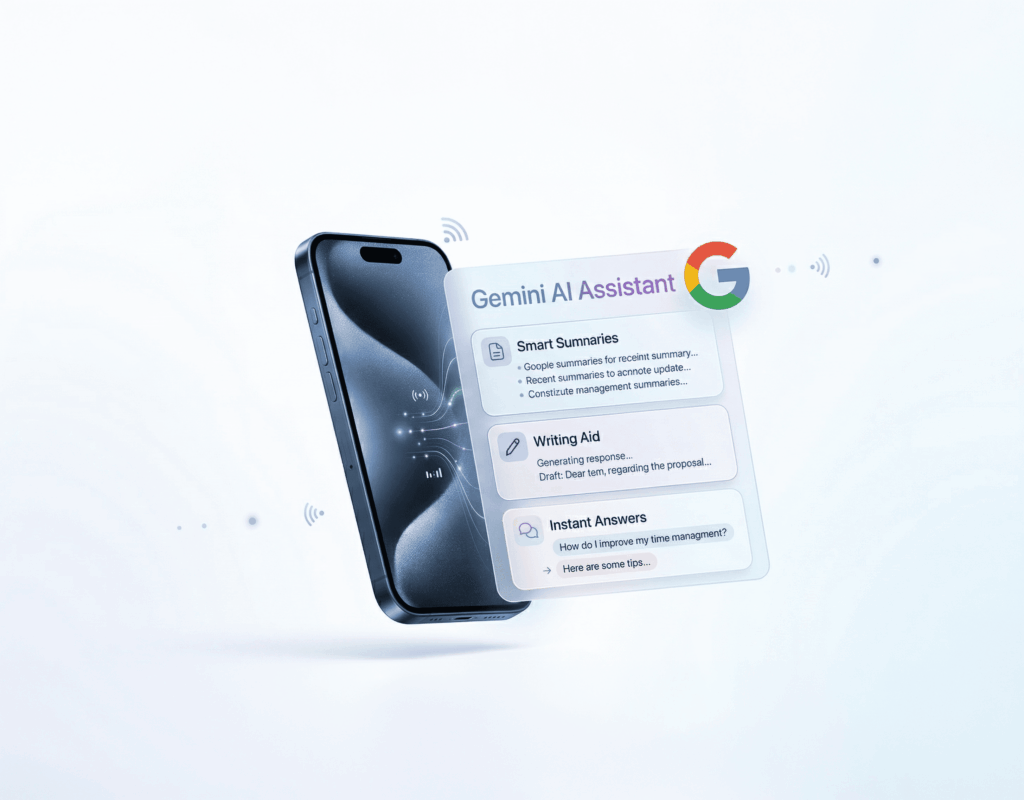
The way we browse the internet is changing. We no longer use the browser just to open pages, search for information, and switch between tabs. We can now also rely on artificial intelligence assistants integrated directly into the browsing experience.
Gemini in Chrome is Google’s approach to bringing AI into the browser’s everyday workflow. Instead of opening a separate tab, copying text, or switching between tools, you can use Gemini inside Chrome to summarize pages, answer questions, compare information, write text, and complete tasks with more context.
The goal is not to replace traditional browsing, but to make it faster and more useful: fewer open tabs, fewer interruptions, and more help right where you are working.
In this guide, you will see what Gemini in Chrome is, how to activate it, what you can do with it, its limitations, and how to use it safely.
What Is Gemini in Chrome
Gemini in Chrome is an integration of Google’s artificial intelligence assistant directly into the Chrome browser.
Its main function is to help you while you browse. It can use the content of the current page as context to answer questions, explain concepts, summarize information, or help you create text. On desktop, Google also indicates that you can share up to 10 open tabs with Gemini to get help across multiple sources at once.
In practice, Gemini in Chrome works as a contextual assistant. This means it does not only respond to what you type, but it can also take into account the page you are viewing if you grant it access.
For example, you can ask it:
- “Summarize this page in five bullet points.”
- “Explain this concept in simple terms.”
- “Compare these tabs and highlight the main differences.”
- “Help me write a professional response.”
- “Extract the key ideas from this report.”
- “Tell me what I should check before buying this product.”
The key difference compared to using Gemini in a separate tab is context. Because it is integrated into Chrome, the assistant can help you based on what you are already reading or doing.
What Gemini in Chrome Is Used For
Gemini in Chrome is designed to speed up everyday browsing, reading, analysis, and writing tasks.
Here are its most interesting use cases.
Summarizing long pages
You can ask Gemini to summarize articles, reports, technical documents, help pages, terms and conditions, or long-form content.
This is useful when you want to quickly understand a page before deciding whether to read it in full.
Example prompts:
- “Summarize this page in 5 key ideas.”
- “Tell me the most important points of this article.”
- “Extract conclusions, risks, and recommendations.”
- “Create an executive summary to share with my team.”
Clarifying difficult concepts
If you are reading technical, legal, financial, or academic content, you can ask Gemini to explain a specific section in simpler language.
Examples:
- “Explain this as if I were not an expert.”
- “What does this term mean in this context?”
- “Give me a practical example of this idea.”
- “Summarize this for a marketing professional.”
Comparing information across tabs
One of the most useful features is using Gemini to compare multiple open tabs.
It can help you compare products, services, articles, hotels, tools, pricing plans, or documentation.
Examples:
- “Compare these three options and create a table.”
- “List pros and cons of each product.”
- “Which one is best for a small business?”
- “What are the differences between these two solutions?”
Writing and editing text
Gemini can also help you draft or improve text while working in Chrome.
You can use it for:
- Emails.
- Customer replies.
- Professional messages.
- Summaries.
- Posts.
- Presentation ideas.
- Draft documents.
- Tone reformulations.
Examples:
- “Write a short and polite response.”
- “Improve this text to sound more professional.”
- “Make it clearer and more direct.”
- “Turn these ideas into an email.”
Faster research
If you are researching a topic, Gemini can help you organize information, identify key points, and turn multiple sources into a clearer synthesis.
Examples:
- “Extract the main arguments.”
- “What points repeat across these pages?”
- “What questions should I answer before deciding?”
- “Create an outline for an article on this topic.”
How to Activate and Use Gemini in Chrome Step by Step
Availability of Gemini in Chrome may vary depending on country, language, device, account, and plan. Before starting, make sure Chrome is updated and you are signed in with a compatible Google account.
1. Check if Gemini is available
Open Chrome and check whether the Gemini icon appears in the toolbar or browser options.
If you do not see it, the feature may not yet be available for your account, country, device, or plan.
2. Open the side panel
If Gemini is available, click the icon to open the side panel.
From there, you can use the assistant without leaving the page you are visiting.
3. Open the page you want to analyze
Open the content you want to work with:
- An article.
- A product page.
- A news story.
- A comparison page.
- A support page.
- A document or report.
4. Make a specific request
Avoid generic prompts like “help me with this.” The clearer your instruction, the better the response.
| What you want to do | Recommended prompt |
| Summarize a page | “Summarize this page in 5 key points.” |
| Understand a topic | “Explain this page for a non-technical person.” |
| Compare options | “Create a comparison table with pros and cons.” |
| Make a decision | “Tell me what information is missing to decide.” |
| Create content | “Turn this information into a short professional email.” |
5. Refine the response
The first answer is not always the best. You can ask for a second version based on your needs.
| What you need | You can ask |
| Shorter | “Make it shorter and more direct.” |
| Clearer | “Explain it in simpler terms.” |
| More actionable | “Prioritize it.” |
| More practical | “Turn this into a checklist.” |
| More formal | “Make it suitable for an email.” |
6. Review before using
Gemini can save time, but it should not be copied without checking.
Before using the information, verify:
- Dates.
- Figures.
- Prices.
- Conditions.
- Sources.
- Sensitive data.
- Important recommendations.
The best way to use Gemini in Chrome is as a browsing copilot: it helps you summarize, compare, and organize information, but final decisions should always be human-reviewed.
Practical Use Examples
For work
Gemini in Chrome can help you reduce time spent on reading, analysis, and writing tasks.
Recommended uses:
- Summarizing proposals or reports.
- Preparing meetings.
- Reviewing client documentation.
- Extracting action points.
- Writing email drafts.
- Comparing tools.
- Analyzing competitor pages.
- Structuring presentation ideas.
Useful prompt:
“Summarize this page in a business context: what problem it solves, who it is for, advantages, limitations, and next steps.”
For studying
It can also work as a study assistant.
Recommended uses:
- Summarizing academic articles.
- Explaining difficult concepts.
- Creating outlines.
- Turning long texts into notes.
- Creating review questions.
- Comparing theories or authors.
- Simplifying technical documentation.
Useful prompt:
“Explain this page as if I were a beginner student. Include examples and a list of key concepts.”
For travel planning
You can use it while browsing flights, hotels, activities, or destination guides.
Recommended uses:
- Creating itineraries.
- Comparing accommodations.
- Summarizing guides.
- Packing lists.
- Organizing activities by day.
- Adapting plans to budget or time.
Useful prompt:
“Using the information from these pages, create a 3-day itinerary with morning, afternoon, and evening activities.”
Tips for Getting Better Responses
The quality of Gemini’s output depends heavily on how you prompt it.
Provide context
Do not just say “summarize.” Explain the purpose.
Example:
“Summarize this page to prepare a meeting with a non-technical client.”
Define the format
Ask for lists, tables, steps, bullets, or executive summaries.
Example:
“Give the answer in a table with columns: idea, importance, and recommended action.”
Specify depth level
You can request basic, intermediate, or advanced explanations.
Example:
“Explain it at a beginner level, without jargon.”
Ask for comparison
Gemini is especially useful when you want to avoid manually analyzing multiple pages.
Example:
“Compare these tabs and tell me which one offers the best value for money.”
Refine the answer
Do not stick with the first version. Ask for adjustments.
Example:
“Now make it shorter and more decision-oriented.”
What Is Auto Browse in Gemini for Chrome
Google has also announced more advanced features for Chrome, such as auto browse, an experience that allows Gemini to help with multi-step browsing tasks.
According to Google, auto browse is designed so Gemini can complete complex web tasks such as searching for information, comparing options, or progressing through browsing flows, always under user control.
Availability of auto browse may depend on country, device, and plan. Specialized media have noted that its initial rollout targeted Google AI Pro and Ultra users in the United States.
This type of integration is also connected to the evolution of Google AI Overviews, where Google no longer limits itself to showing links, but can synthesize information and display generative answers within the search experience.
Privacy and Security When Using Gemini in Chrome
Using AI inside the browser has advantages, but it also requires good practices.
Google explains that Gemini in Chrome may use the content of the current tab to provide more relevant responses. That is why it is important to review what you share and your settings.
Basic recommendations
- Do not share passwords, banking data, or highly sensitive information.
- Review your Gemini activity settings.
- Check which tabs you are sharing.
- Verify important data with official sources.
- Do not rely on Gemini alone for legal, medical, or financial decisions.
- Keep Chrome updated.
- In enterprise environments, review internal policies before enabling AI features.
Google also states that you can manage your Gemini activity to review, delete, or disable stored data.
Limitations of Gemini in Chrome
Gemini in Chrome can save time, but it is not perfect.
- It may incorrectly summarize ambiguous content.
- It may omit important details.
- It may get numbers, dates, or conditions wrong.
- It may not access all tabs if they are not shared.
- Some features are not available to all users.
- Availability varies by country, language, account, and plan.
- It does not replace human verification.
The best way to use it is as a browsing copilot, not as a final authority.
Gemini in Chrome and the Future of Browsing
Gemini in Chrome illustrates where web browsing is heading: less manual searching, more contextual assistance, and more help summarizing, comparing, writing, and making decisions without leaving the browser.
For users, this means faster navigation with more context. For brands, it represents a major shift: it is no longer enough to appear in Google; it also matters how AI assistants summarize, cite, and recommend their content.
This change is directly connected to GEO positioning and the shift from SEO to GEO, where organic visibility depends not only on rankings and clicks, but also on mentions, citations, and brand representation in generative answers.
That is why working on SEO for AI and measuring presence with an AI visibility tool will be key to understanding how a brand appears in environments such as Gemini, ChatGPT, Perplexity, or AI Overviews.

 Oct 23, 2026


